INSAVLO

FEATURES

What document teams need

On-device AI first: Auto Redact, text recognition, scan clean-up, document splitting and translation run on your computer with Insavlo G1 Mini and other on-device models. Edit, annotate, sign, convert, compare and protect PDFs too. Each feature shows its edition: Personal is free (coming soon), Pro adds on-device AI, and Enterprise adds compliance formats and enterprise management.

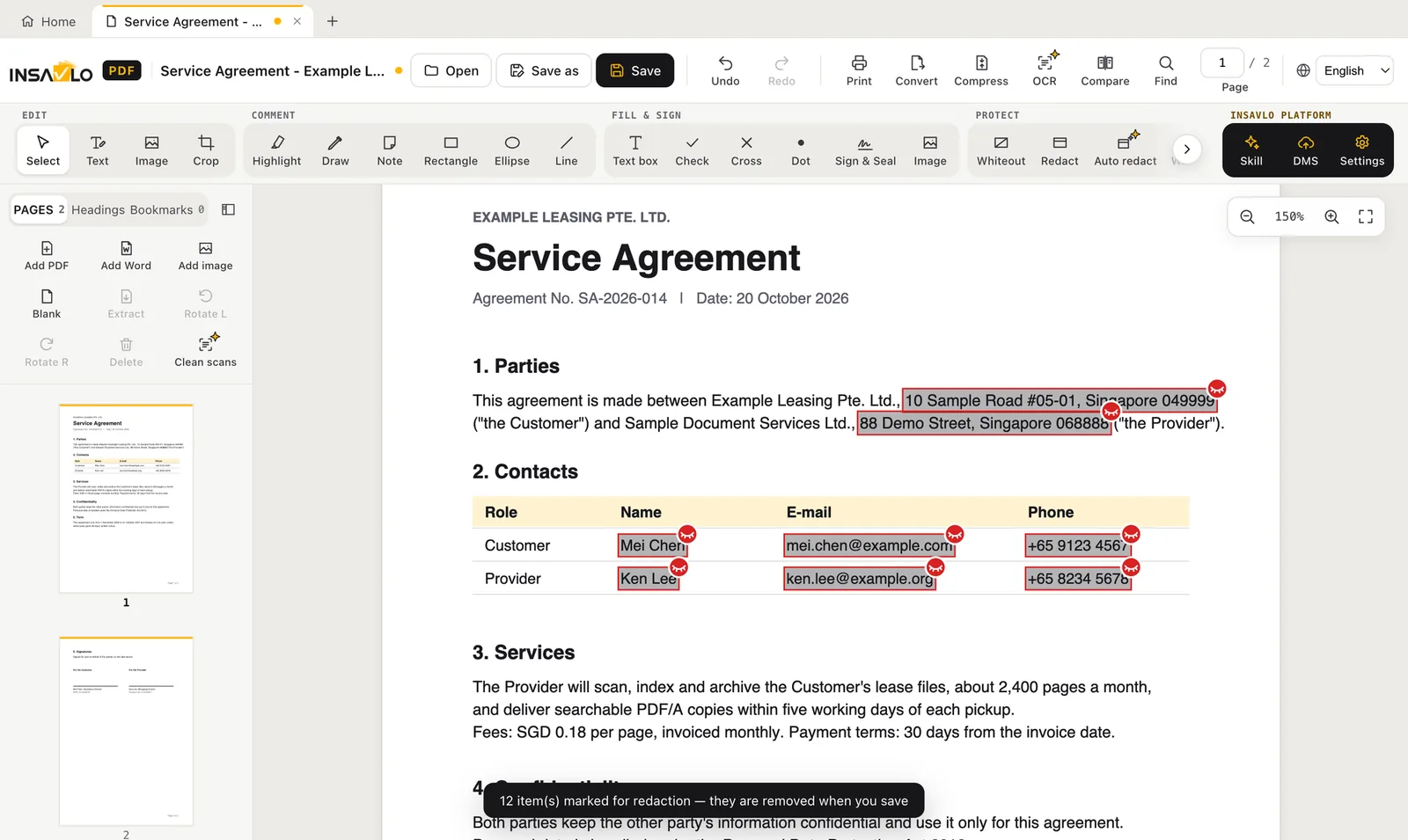
AUTO REDACT On-device AIPro and up

Find personal data with AI

Lists the names, addresses, phone numbers, email addresses, ID numbers and account numbers in a document by type, and finds stamps and photos of people. You confirm each one, then secure redaction removes them.

  • Names and addresses found by an on-device AI model (downloaded on first use)
  • ID numbers, card numbers, IBANs and account numbers matched by rules and check digits
  • Also finds stamps and photos of people (preview) and marks each as a whole box
  • Scanned pages can be recognised first, then auto-redacted
Auto Redact found 12 items and marked them for redaction

OCR On-device AIPro and up

Searchable PDFs from scans, offline

Text recognition adds a hidden text layer to scanned pages, so they can be searched, selected and copied. The recognition models come with the installer and need no internet.

  • Multilingual recognition, including English, Chinese (Traditional and Simplified), Japanese and Thai
  • Sideways, upside-down and skewed pages are corrected
  • Keep reading and editing while pages are recognised
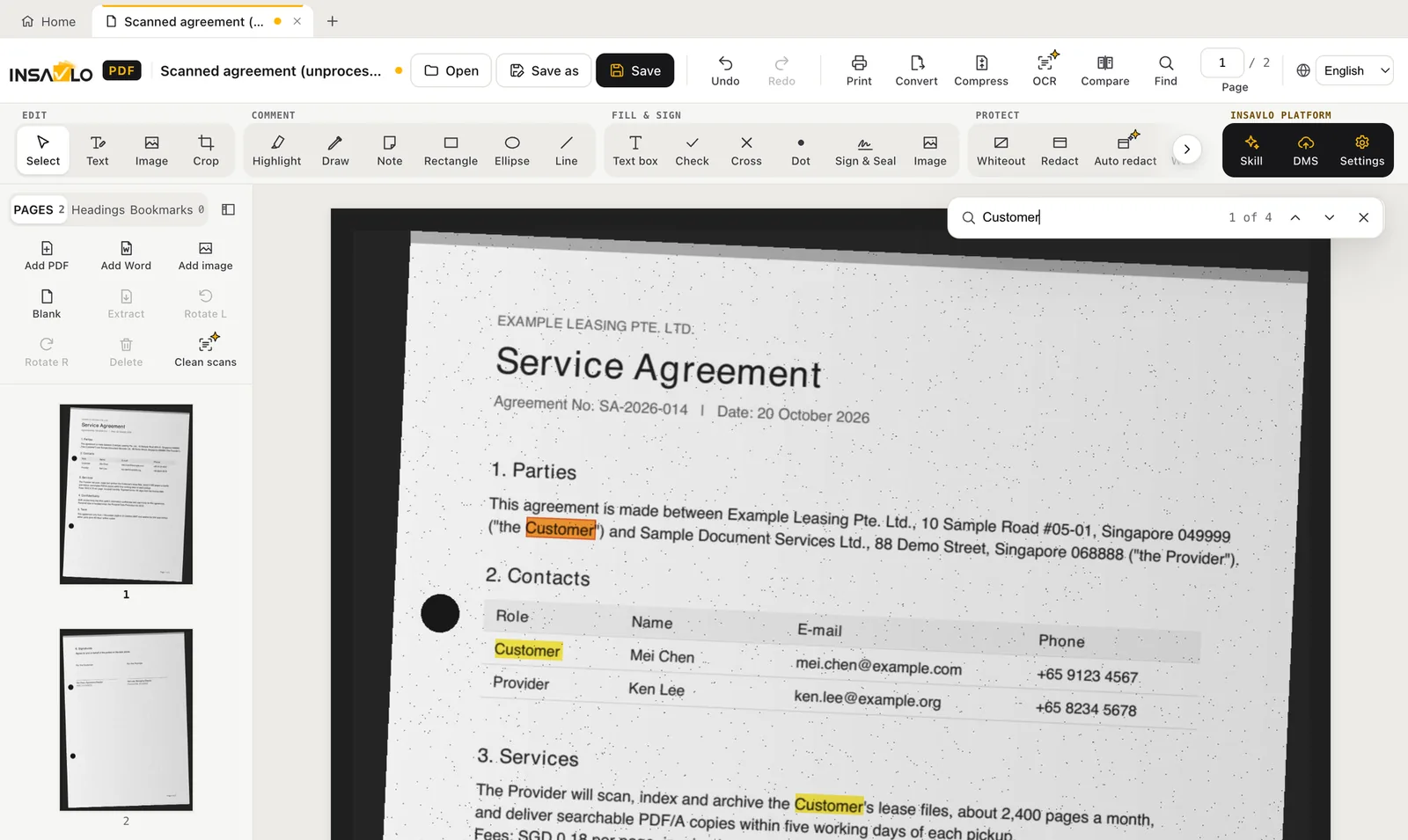
Searching a scanned contract after text recognition

AI SCAN CLEAN-UP On-device AIPro and up

Automatic scan clean-up

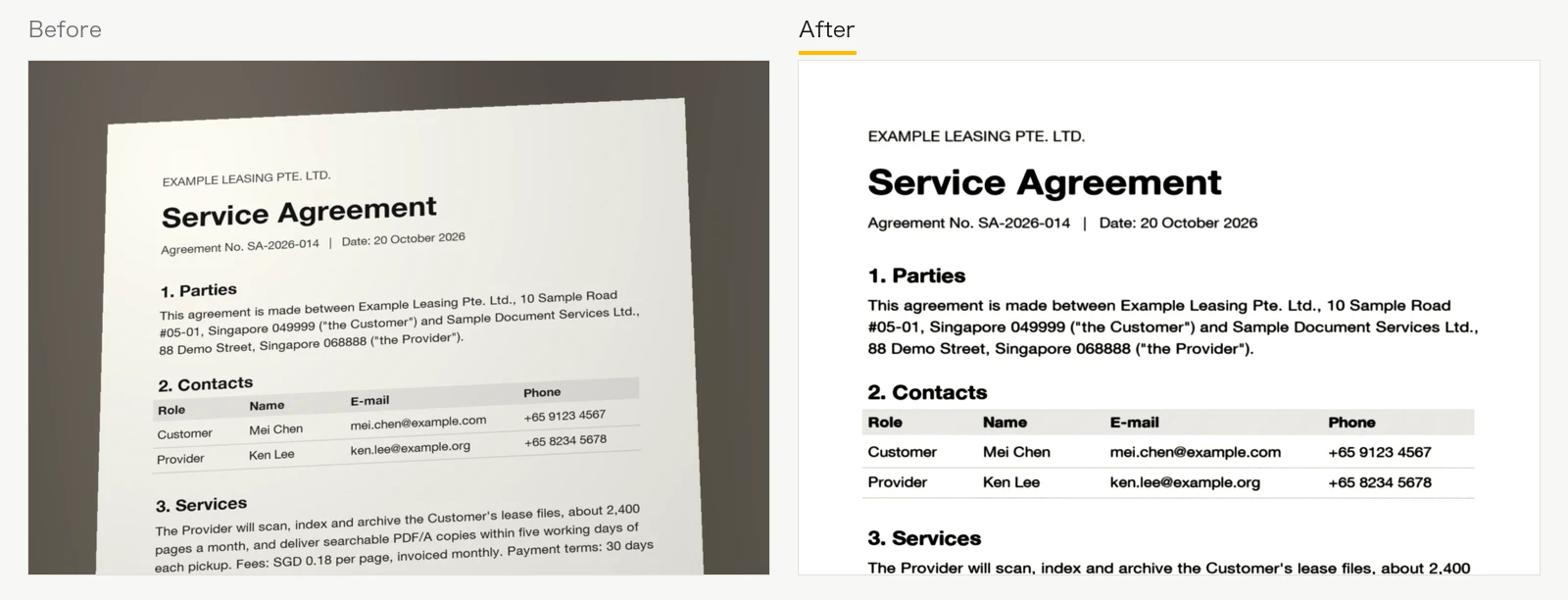
Scan clean-up automatically crops edges, removes shadows, makes the paper white and straightens skewed pages.

  • Fix orientation, straighten and crop to the paper; correct pages photographed at an angle
  • Colour, greyscale or black-and-white output
  • Can be undone

How well automatic detection works depends on image quality (lighting, contrast and background). Check the result after processing.

Before and after scan clean-up: a skewed grey scan becomes a straight white page

AI DOCUMENT SPLITTING On-device AIPro and up

Split images: several documents on a page become separate pages

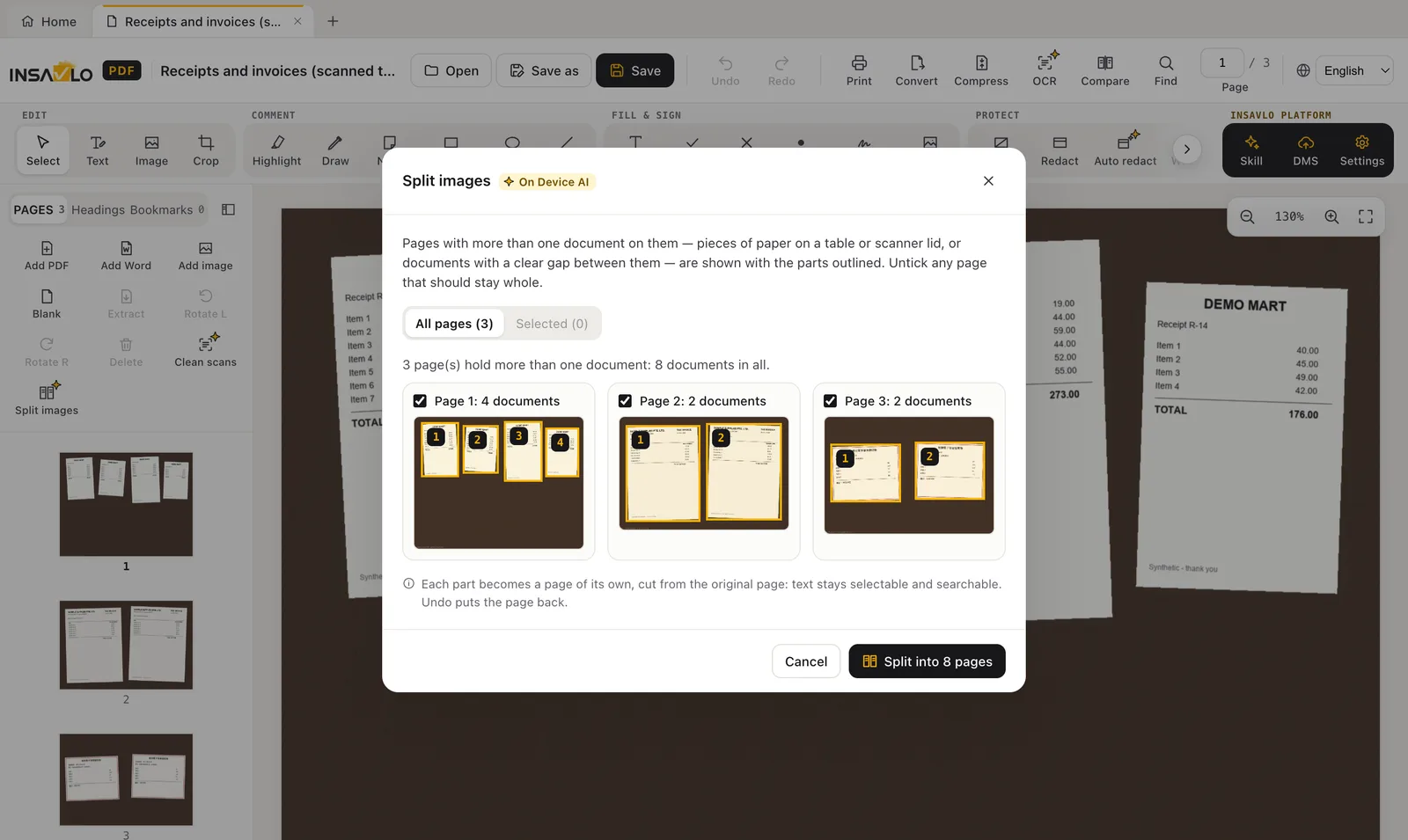
Invoices, receipts or photos scanned or photographed together are outlined automatically; after you confirm, each becomes a page of its own.

  • Finds sheets of paper on a table or scanner lid, and documents with a clear gap between them
  • Preview the outlined parts on each page, and untick any page that should stay whole
  • Split pages keep their text selectable and searchable, and can be undone

How well automatic detection works depends on image quality (lighting, contrast and background). Check the outlined parts before splitting.

Split images: 8 receipts and invoices outlined across 3 scanned pages

AI TRANSLATION On-device AIPro and up

AI translation into 22 languages, on your computer

Contracts and internal documents never go to an online translation service: Insavlo G1 Mini translates them on your computer and saves the translation as a new document for you to review.

  • Traditional Chinese uses Taiwan’s legal and business terms
  • A glossary keeps company names and terms consistent
  • Numbers, email addresses, web addresses, codes and the language of each paragraph are checked; paragraphs that fail are annotated
  • Text in scans and images is recognised first, then translated
  • Uses a dedicated graphics card automatically when there is one; you can also choose the card or use the processor only

Experimental: translations are for reference, are no substitute for professional or certified translation, and need review before formal use.

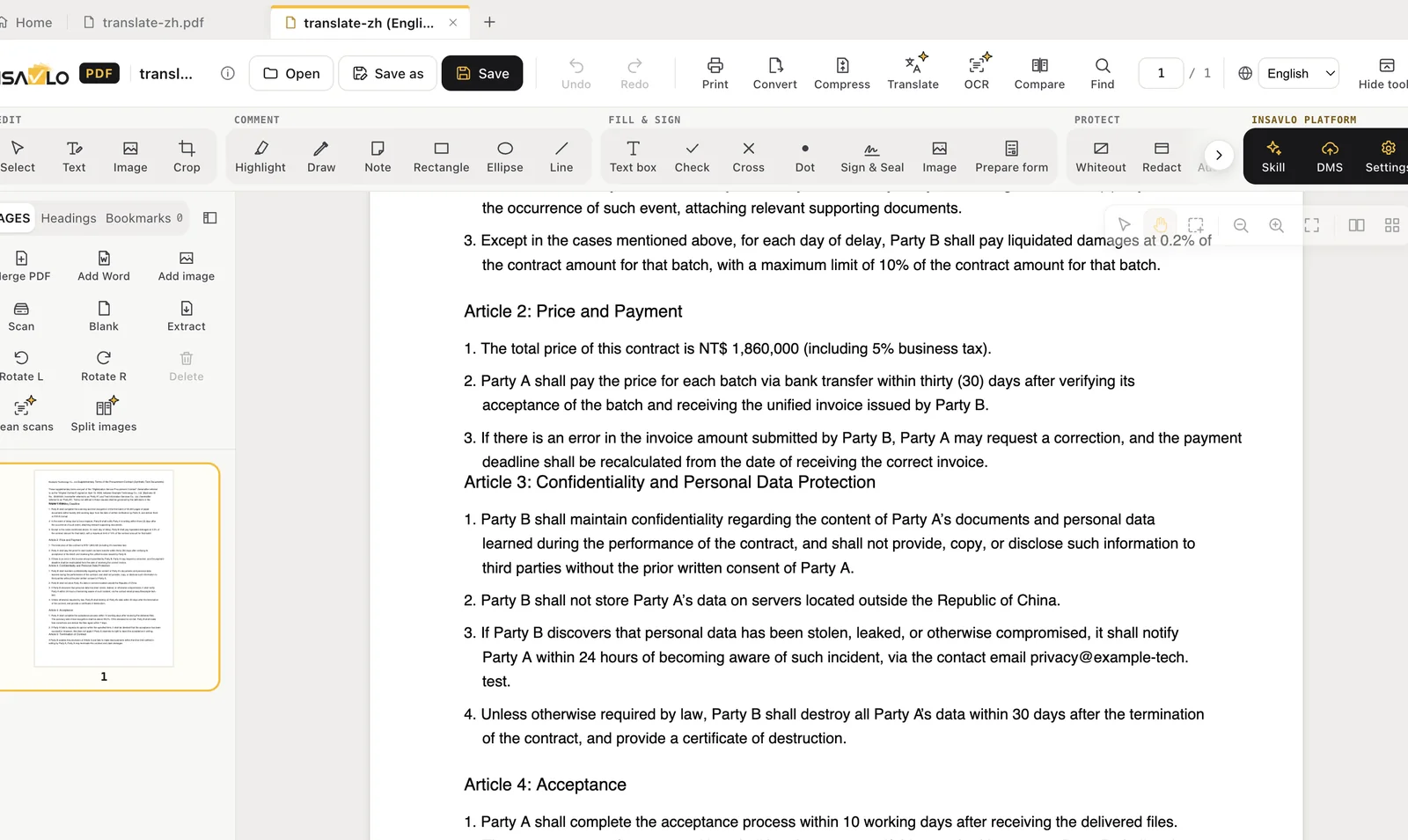
An English contract translated into Traditional Chinese on the computer, with notes beside paragraphs to review

EDITAll editions

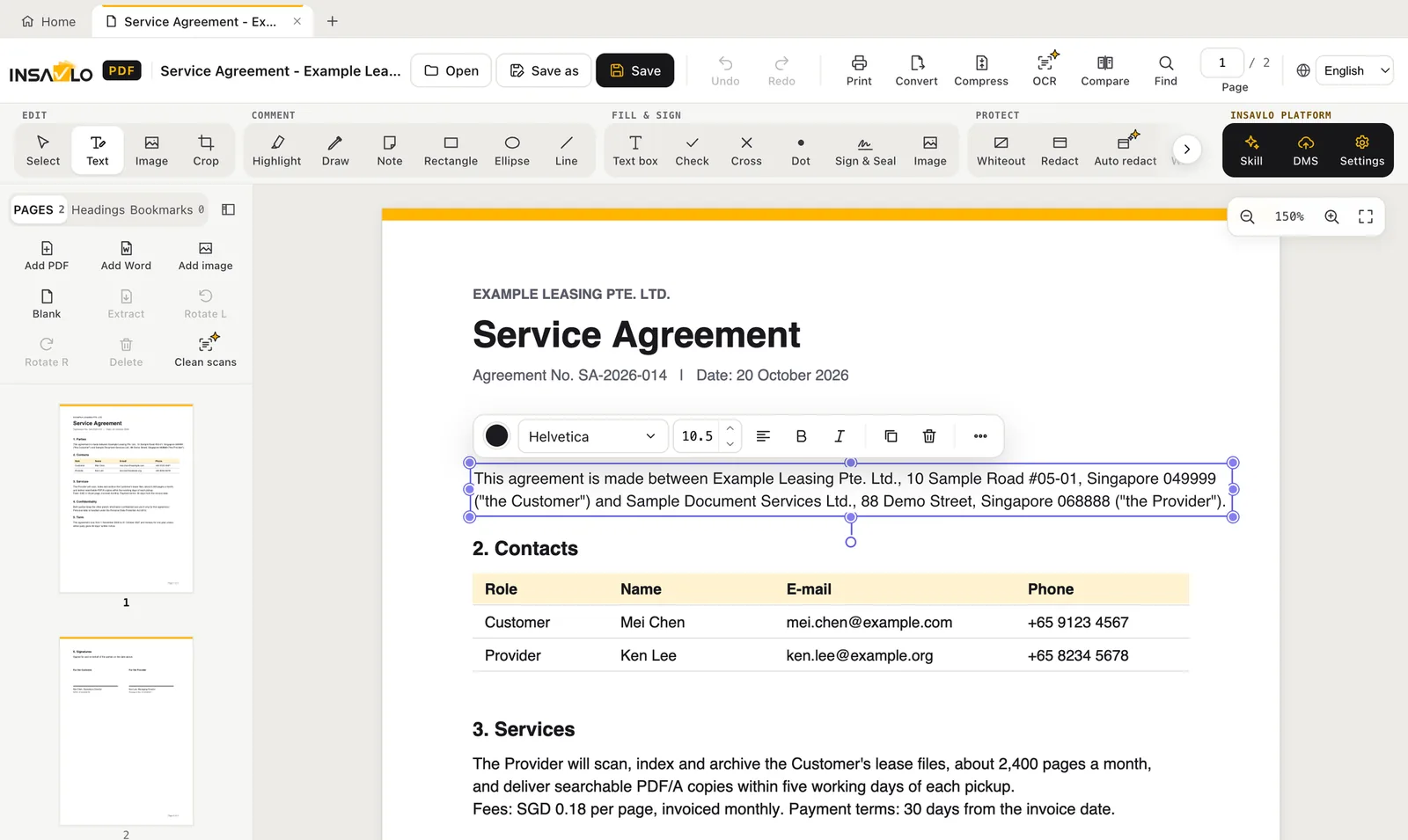
Edit text directly in the PDF

Click a paragraph and rewrite it. Text reflows within the paragraph, and the content below moves up or down.

  • Font, size, colour, alignment, bold, italic, underline, strikethrough, indents, line, paragraph and letter spacing; colour can be applied to selected text only
  • Use fonts installed on the computer, embedded when you save (fonts whose licence forbids embedding are not listed)
  • Edit table cells, move paragraphs, add text boxes
  • Edit text in scans and pictures directly: after recognition, click a line and type; font, size and colour follow the original, the old text is removed from the picture and the background is filled in (printed, horizontal text on plain or simple backgrounds; Pro and up)
  • Find and replace across the whole document, keeping the original font, size and colour and reflowing the paragraph; one Undo reverts a Replace all (scans must be made searchable first)
  • Copy text boxes, paragraphs, shapes, images and annotations and paste them at the same place on another page or in another document
  • Move, resize, duplicate and adjust images, align them to the page or change their stacking order
  • Crop pages, optionally removing everything outside the crop for good; drag four corners to correct the keystone of a page photographed at an angle
  • Insert PDF, Word, image or blank pages; reorder by dragging in the all-pages thumbnail view; rotate and delete pages; extract the selected pages as one PDF or as one PDF per page
  • Bookmarks, and a linked table of contents made from bookmarks or headings (levels, leaders and format can be set)
Editing a paragraph with the text tool

ANNOTATEAll editions

Review with standard PDF annotations

Highlights, notes and shapes are saved as standard PDF annotations, so colleagues can see and change them in other PDF readers.

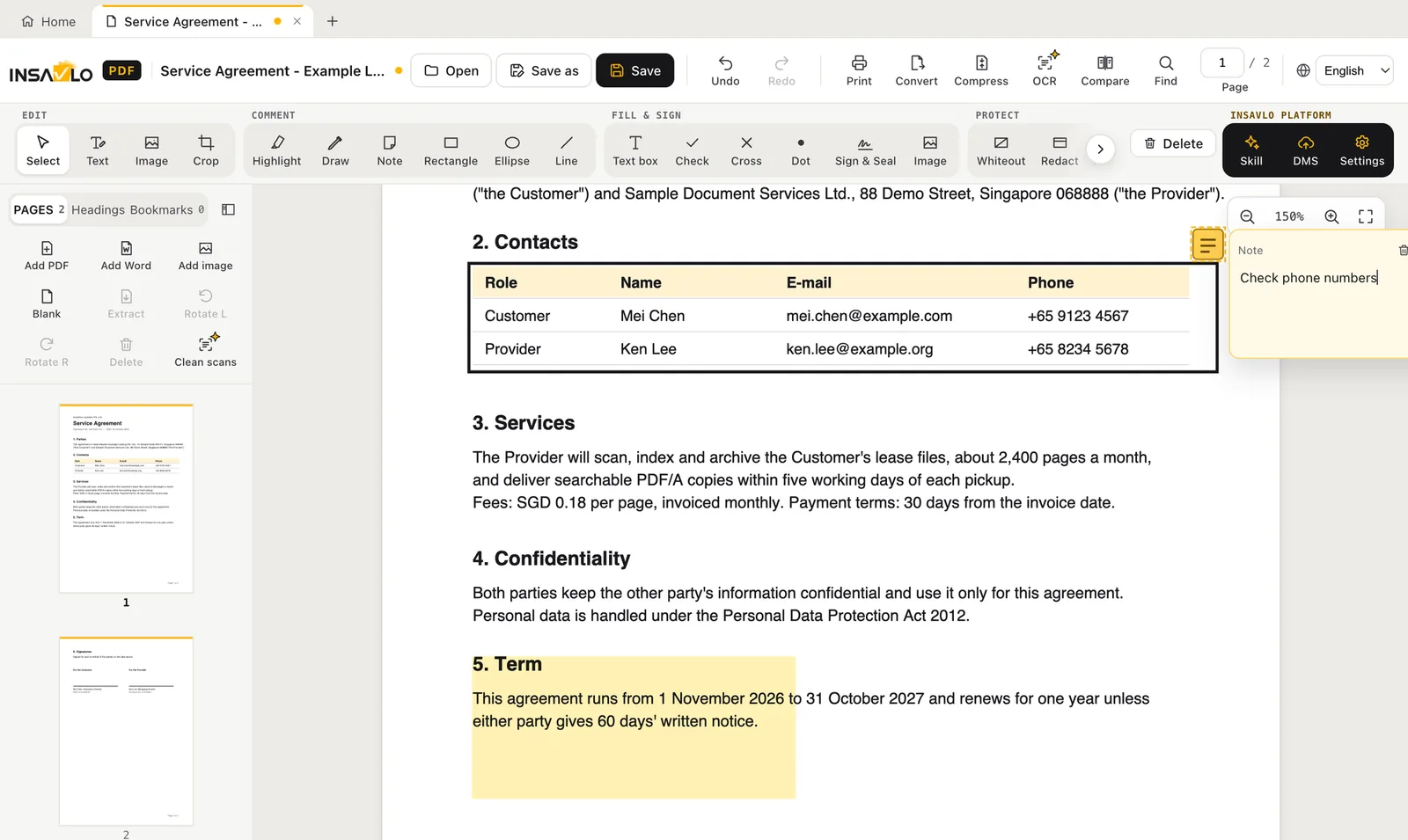
  • Highlight, pen, notes, rectangles, ellipses, lines and text boxes
  • An Annotations tab in the sidebar lists every annotation by page with its author; click one to jump to it
  • Ticks, crosses and dots for paper-style forms
  • Fill in existing PDF forms: text fields, check boxes, radio buttons and lists; number and date formats, range checks and calculations such as sums follow the field settings (form scripts are never run)
  • Text or image watermarks, single or tiled, with a live preview
Highlights, a rectangle and a note on a sample contract

SIGNAll editions

Handwritten signatures, company seals and digital IDs

Sign the way your organisation does, from a quick handwritten signature to a certificate on a smart card. (Handwritten signatures and signature checks: all editions; company seals and digital signatures: Pro and up; smart cards, PAdES and timestamps: Enterprise.)

  • Handwritten or image signatures with the background removed; up to six kept on the computer
  • Upload a seal image or make a seal in the app: round, oval, square or rectangular, with a second line, a star and a date, red text or white on red; stamp it at real size or split it across page edges
  • Digital signatures from the Windows certificate store, the macOS keychain, .p12 / .pfx files, or smart cards and USB tokens via PKCS#11
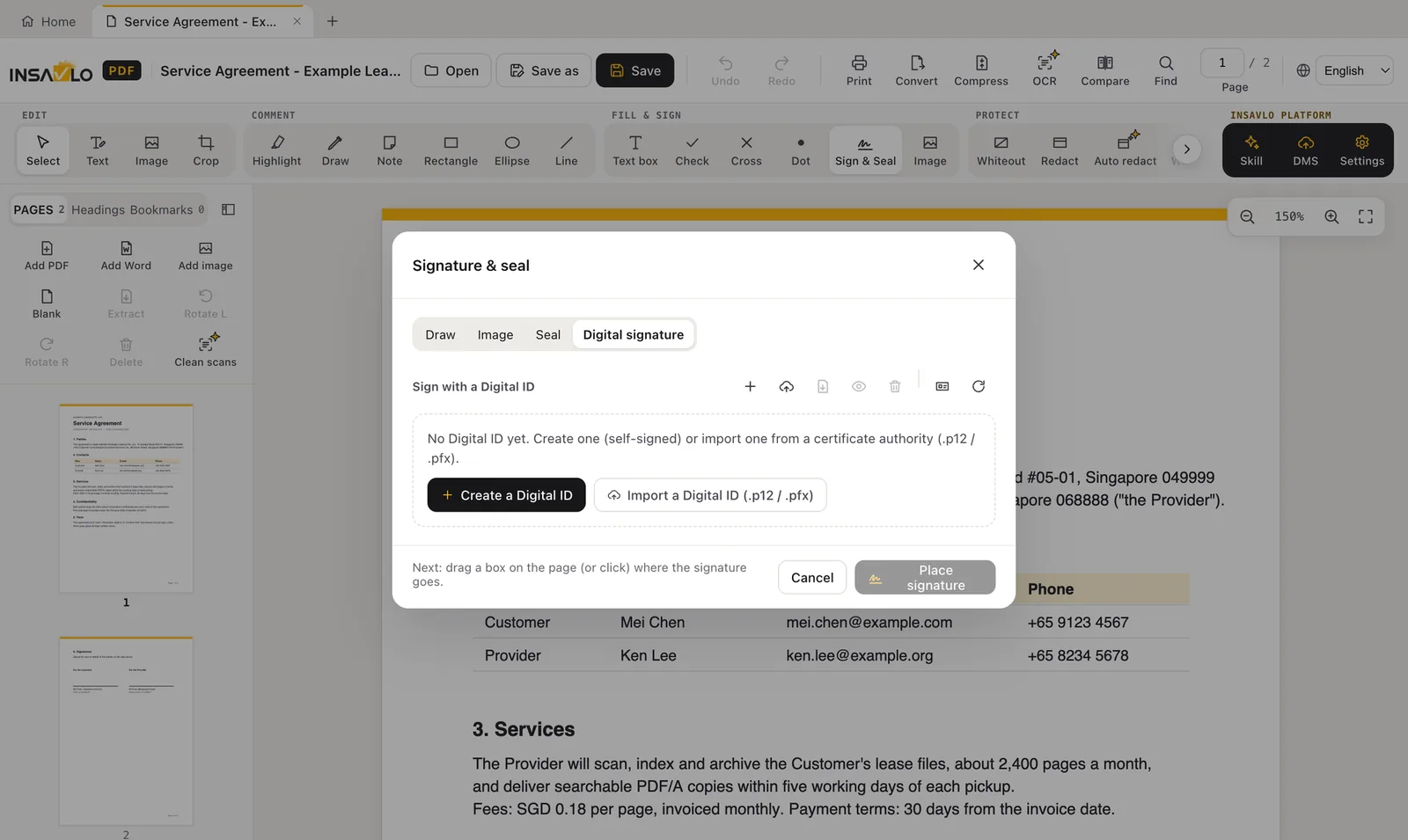
  • No certificate yet? Create a digital ID (self-signed) in the app, export the certificate for recipients or back it up as .p12; recipients must trust the certificate for the signature to show as valid
  • PAdES-format signatures (SHA-256, RSA or ECDSA), with an optional timestamp
  • The signature panel shows whether a signed document was changed afterwards

We recommend confirming that your smart cards, USB tokens and readers work during the trial.

The Digital signature tab and a list of digital IDs

REDACTAll editions

Redaction that removes content from the file

Draw redaction boxes, set their size and angle exactly, and save. The text, vector graphics and image pixels under each box are removed, along with overlapping annotations and form fields.

  • Remove everything, or only the text and keep the background image
  • Redaction boxes in black, white, grey, red, navy, a custom colour or mosaic; mosaic only changes the look, and the content under the box is still removed
  • While you edit, each box already looks the way it will after saving (solid colour or mosaic); the selected box turns semi-transparent so you can line it up
  • A separate Whiteout tool only covers content visually; it stays in the file, so don't use it to remove confidential data
  • After saving, the file is read again: if text can still be found under a box, the save is not completed, and the places are marked with an orange R and listed by page so you can go straight to them
  • The app reports how many characters, images and other items were removed
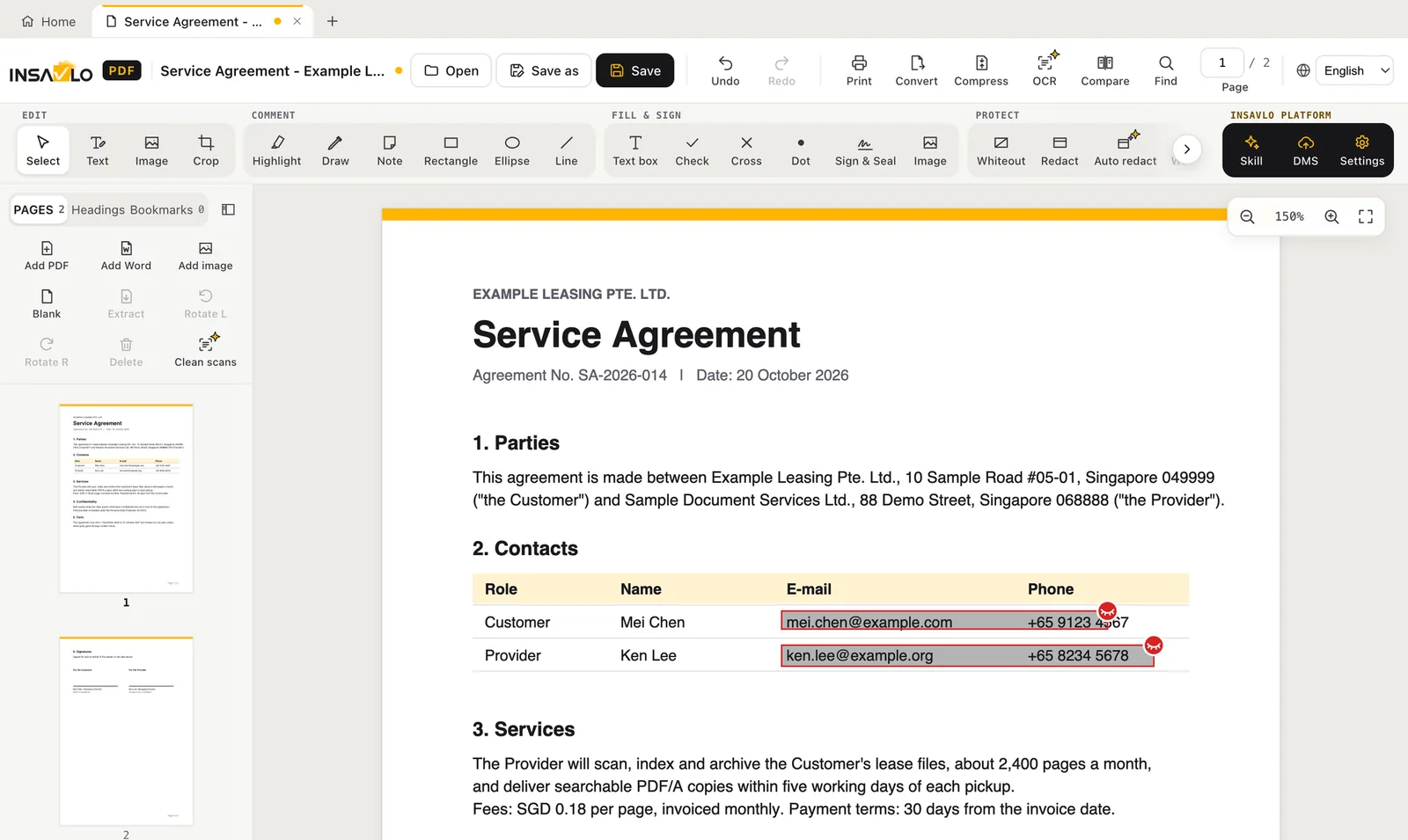
Two redaction areas marked on a contact table before saving

CONVERTAll editions

Accurate conversion to Word and Excel, with layout, tables and graphics as they were

All conversions happen on the computer, without Microsoft Office installed. Word with the exact layout puts every paragraph back where it was on the PDF page, keeps the original line breaks and tunes character spacing so each line is as wide as in the original; ruled tables become real Word tables. You can also convert to continuous text for re-flowing. (Exact-layout Word, PNG and ODT: Pro and up.)

  • Text keeps its font, size, colour, bold, italic and underline, and can be edited straight away
  • Ruled tables become real Word or Excel tables, with column widths, row heights, merged cells, shading and borders from the original
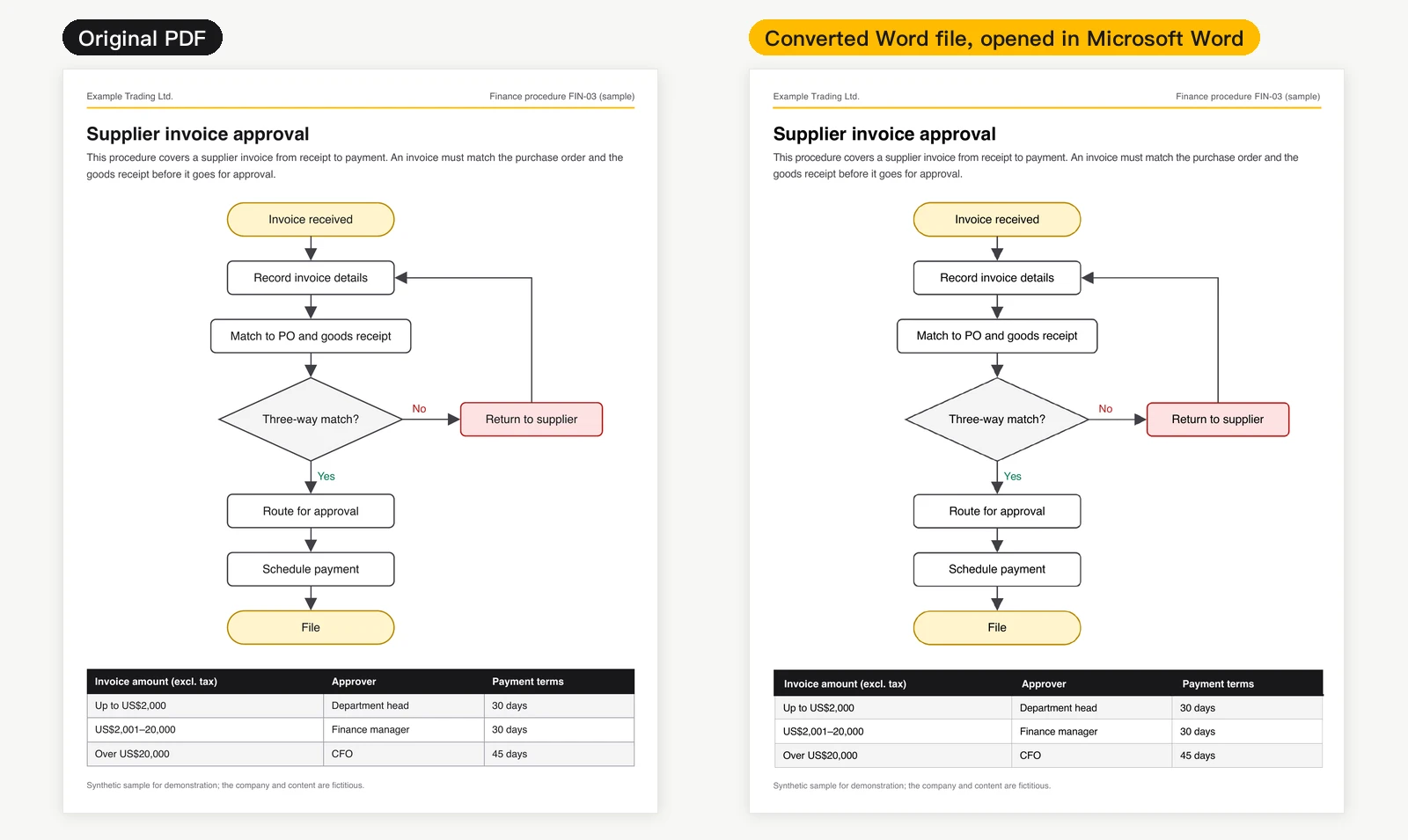
  • Flowcharts and charts: lines, arrows and coloured boxes stay in place (as a graphic behind the text), and the text in the boxes stays editable
  • Excel: one sheet per page, with columns and rows laid out like the page; amounts and percentages become numbers you can calculate with, while codes with leading zeros stay text
  • When converting to Word, PDF bookmarks become Word headings and bookmarks, so Word's Navigation pane shows the same structure
  • PowerPoint: one slide per page with editable text boxes and tables; PNG at 72, 150 or 300 dpi
  • Scans to Word or PowerPoint with automatic OCR: skewed pages are straightened and phone-photo shadows evened out, logos, stamps and lines are kept, and checkboxes become editable “☐” (Pro and up)
  • Open Word (.docx) files and images as PDFs without Microsoft Word installed; columns, footnotes, text wrapping and Chinese numbering are laid out as in Word
  • Compress PDFs, with the estimated size shown before saving

Results depend on the original PDF: from Pro up, scans are recognised (OCR) automatically during conversion so the text is editable; without OCR, scanned pages are kept as pictures. Shapes in flowcharts become a picture, not editable Word shapes.

An invoice approval flowchart: the original PDF on the left, and the converted Word file opened in Microsoft Word on the right, with text, flowchart and table in place

COMPAREPro and up

Compare two versions

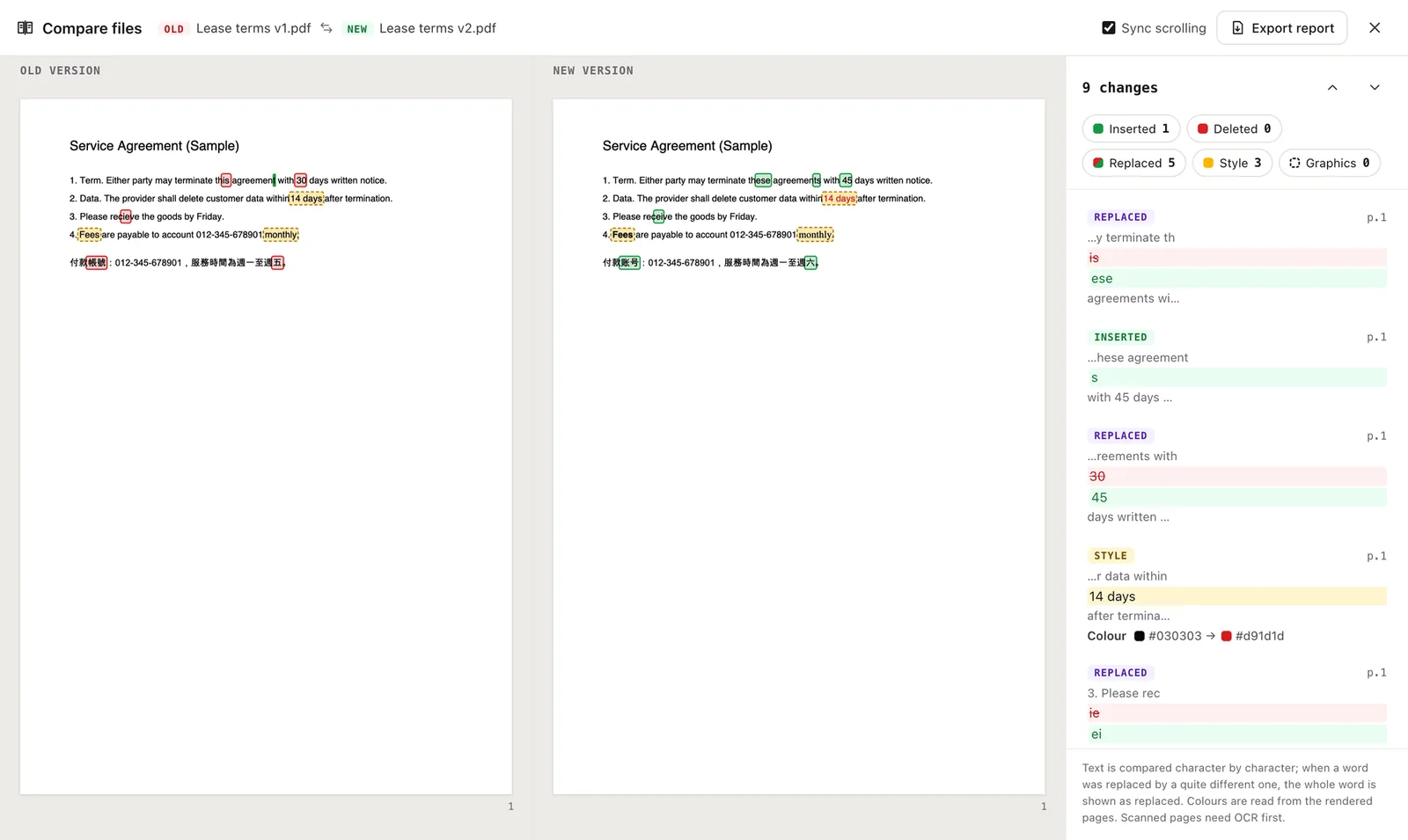
Compare a PDF or Word file with another version; scans and images need OCR first. Changes are shown side by side with synchronised scrolling and listed by type.

  • Added, deleted and replaced text, down to a single character
  • Moved passages are marked as “Moved”, not as a deletion plus an insertion; edits in table cells are marked as “Replaced”
  • Style changes: font, size, bold, italic and colour
  • Image, line and colour changes (marked by area)
  • Export the comparison as a PDF report
Two versions of a lease compared side by side

PROTECTAll editions

AES-256 password protection

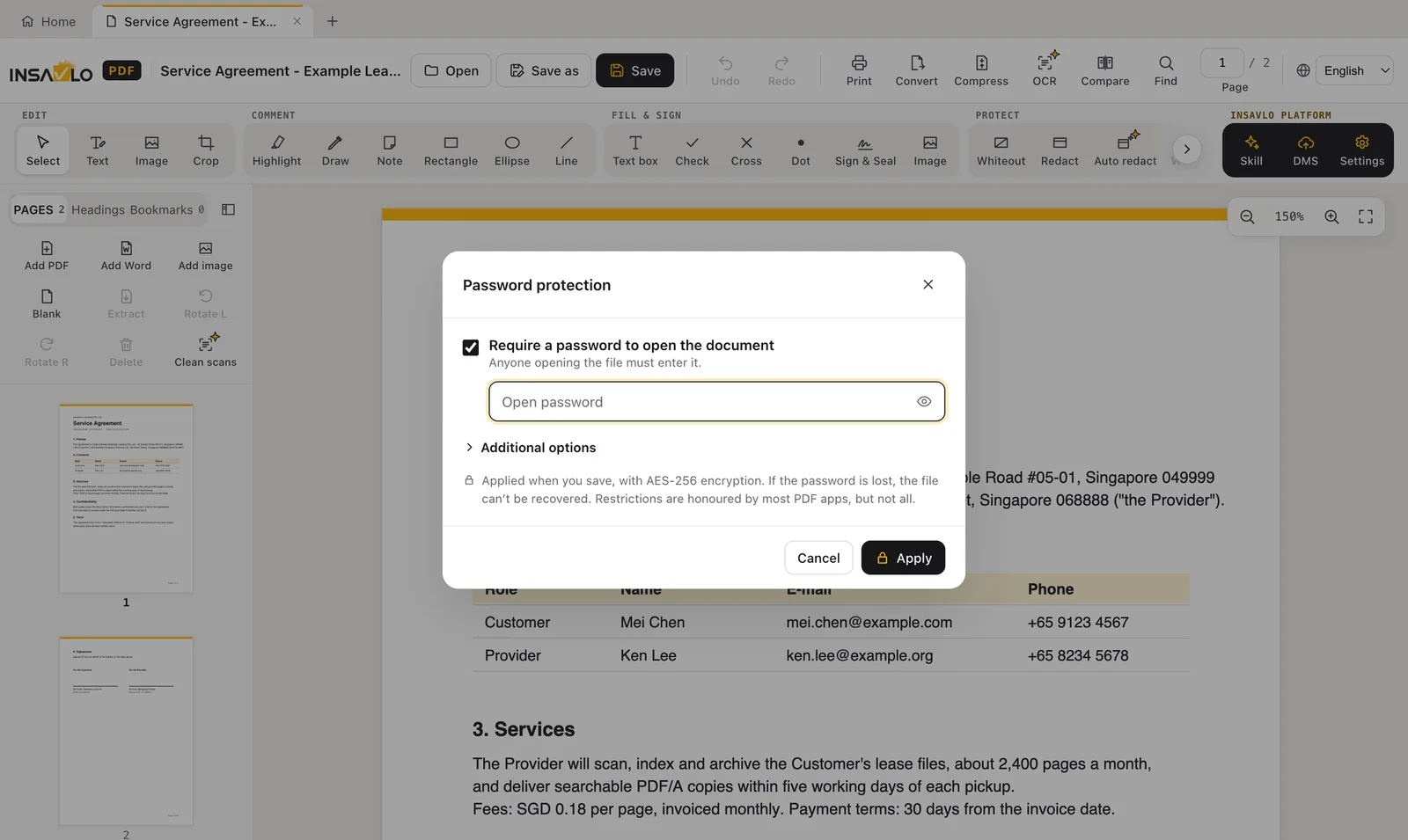
Set an open password, or a permissions password that restricts printing, copying, editing, annotating, forms and page assembly.

  • Saved with AES-256; opens files protected with RC4, AES-128 or AES-256
  • Restricted files open read-only until unlocked
  • Watermarks are written into the page content when saving
The password protection dialog

BATCH & WATCH FOLDERSPro and up

Convert many files at once, or let a folder do it

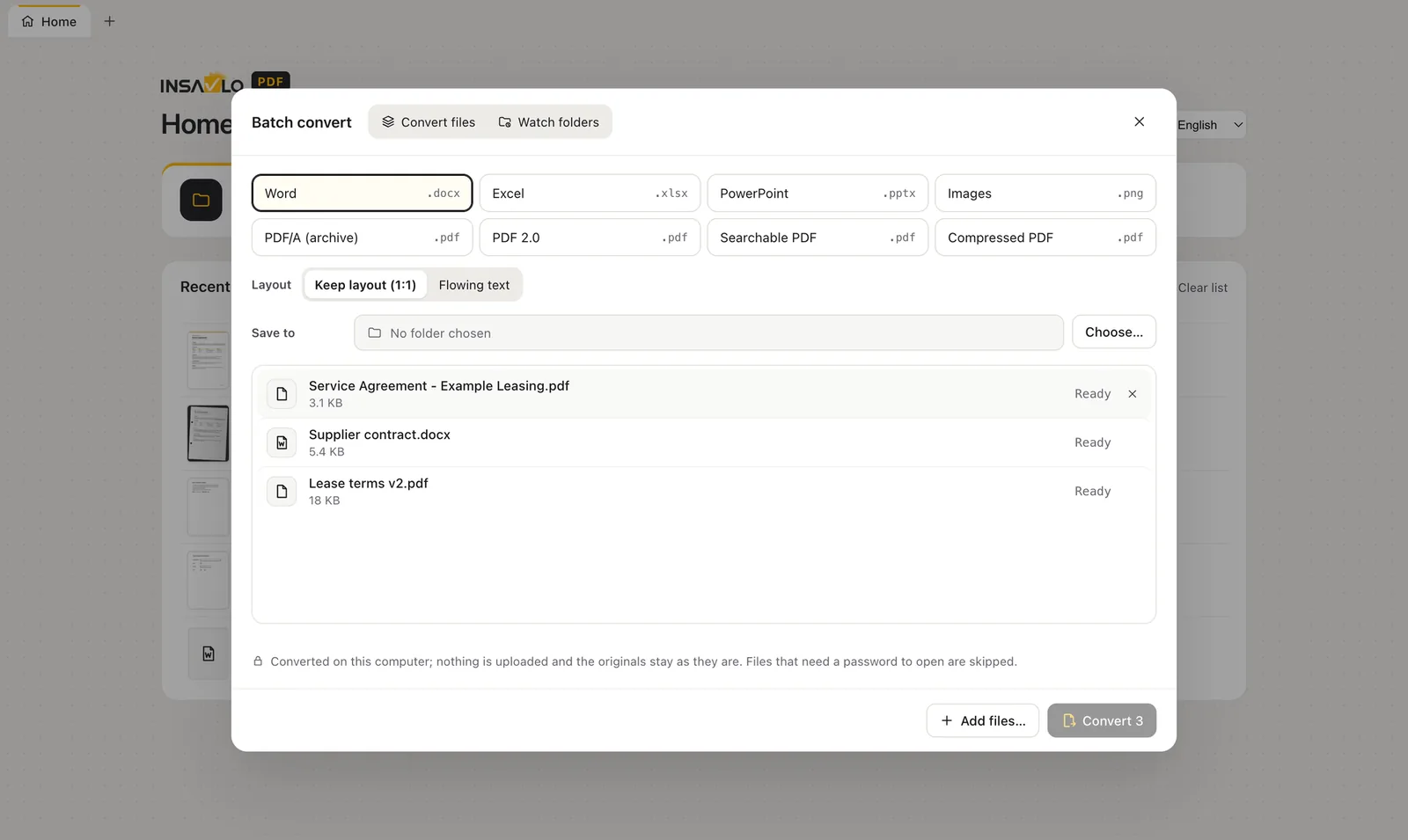
Batch conversion processes a whole set of PDFs, Word files and images in the background; watch folders convert new files dropped into them while the app is running. (Watch folders: Enterprise.)

  • Word, Excel, PowerPoint, images, PDF/A, PDF 2.0, searchable PDF or compressed PDF
  • Originals are not changed; processed files move to a "Processed" folder
  • Keeps running from the system tray after the window is closed
  • Watch folders: files that fail move to a “Failed” folder with a notification and can be retried in one click; the last 50 conversions are kept (Enterprise)
Batch conversion with three files ready

PDF/A · PDF 2.0 · PDF/UAPro and up

Archive and accessibility formats

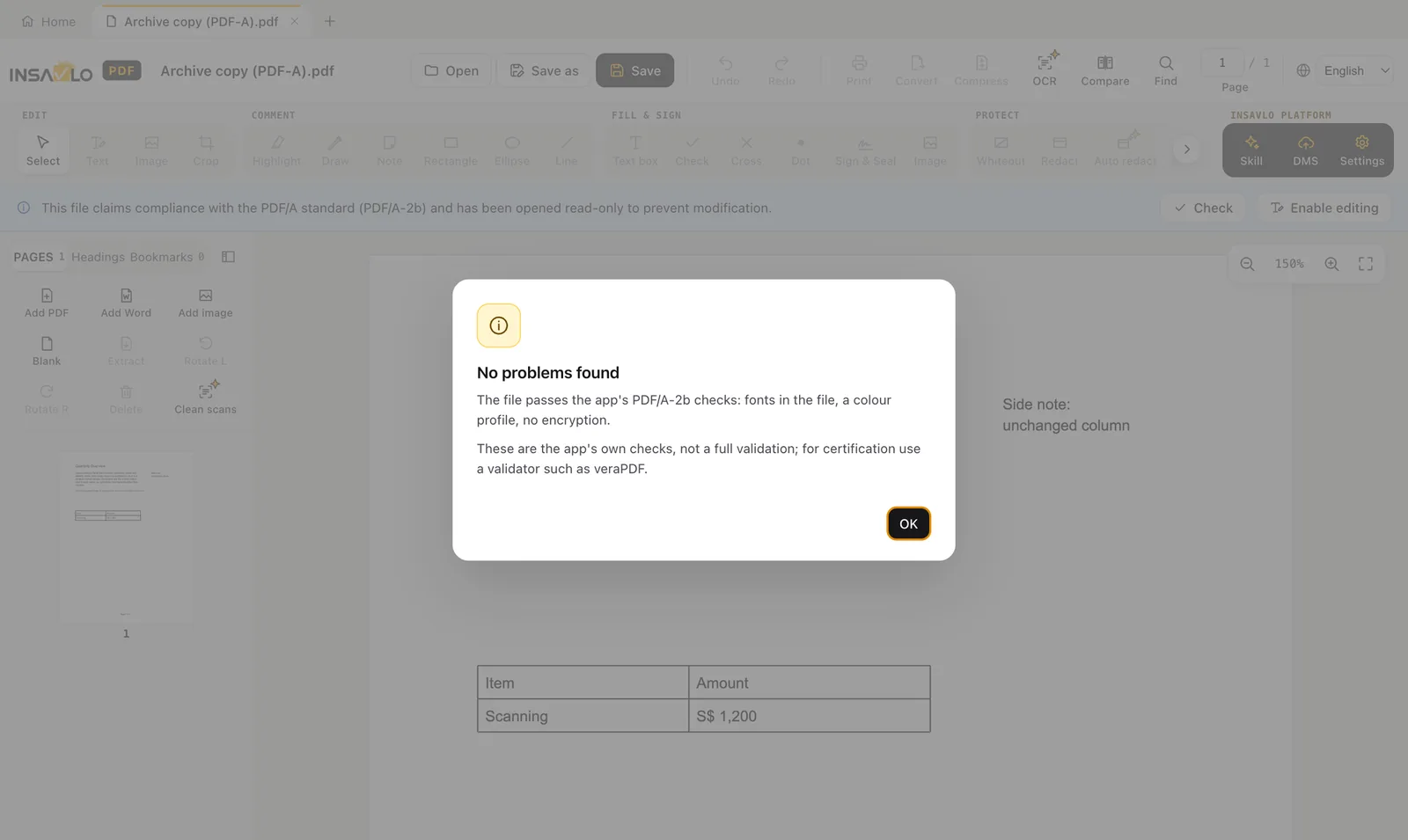
Save as PDF/A for long-term archiving, as PDF 2.0, or with PDF/UA accessibility tags. The app checks the result before marking a file with that format. (PDF/A checks and PDF/UA: Enterprise.)

  • PDF/A-2u keeps searchable text; PDF/A-2b keeps the appearance
  • PDF/A files open read-only and can be checked against the level they claim
  • PDF/UA: tags headings, paragraphs, lists, tables and images, and lets you check the tags before saving
Checking a PDF/A file

INSAVLO CLOUD AI Cloud AIAll editions

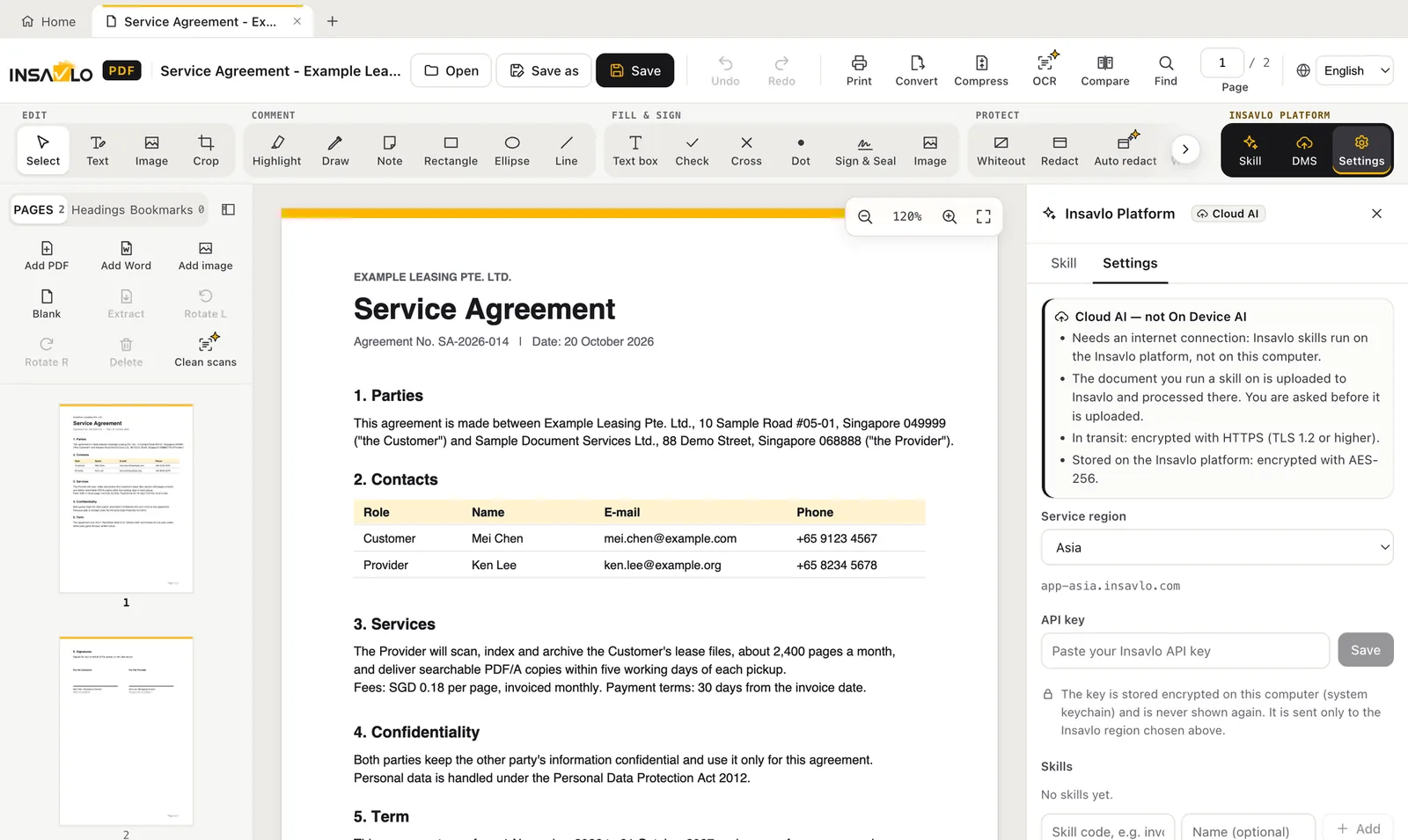
Connect to Insavlo Document Cloud AI when you need more

Insavlo Document Cloud AI handles more complex document work, in the Insavlo cloud (Asia or Europe) or on your organisation's own Insavlo server. Documents are only sent after the user confirms.

  • Classification and field extraction, validation and matching
  • Reconciliation and three-way matching
  • Filing into document management systems (DMS)
  • Translation and summaries
  • Complex documents and difficult handwriting
  • Needs an Insavlo Platform account, agreed separately
Insavlo Platform settings in the editor

FORMATS

What you can open and convert

Conversions don't change the open document; the result is saved as a new file.

TaskDetails
OpenPDF (including password-protected files), Word .docx, ODT, ODS, ODP, PNG, JPEG, WebP, GIF, BMP
ScanScan into a new PDF or add pages to the open document; colour, greyscale or black and white, with resolution and paper size
PDF to WordExact layout with real tables, or continuous text
PDF to ExcelOne sheet per page; keeps tables, merged cells, shading and number formats
PDF to PowerPointOne slide per page with editable text boxes
PDF to ODTOpenDocument Text, keeping paragraphs, tables and pictures
PDF to PNG72, 150 or 300 dpi; several pages saved to a folder
PDF/A-2u, PDF/A-2b (Pro and up; checks: Enterprise)Embeds missing fonts; marked as PDF/A only after the app's check passes
PDF 2.0 (Pro and up)Saves a copy in the ISO 32000-2 format
PDF/UA (Enterprise)Accessibility tags, checked before saving
CompressHigh, medium or low (images at 100, 150 or 200 ppi), with the estimated size
Comparison report (Pro and up)Exports a comparison as a PDF

Try Insavlo PDF on your own documents

Personal will be free to download (coming soon). Try Pro free for 1 month: no payment, just fill in the form. Or contact us first with any questions.

Volume licences: contact sales →